
Aritech ATS8500: connecting to an Advisor Advanced control panel
26 November 2026 · Theo
FRLire cette fiche en françaisATS8500 is Aritech's software for programming Advisor Advanced control panels from a PC. You can download it from the Software section.
This guide connects ATS8500 to an ATS1500A, ATS3500A or ATS4500A panel, with or without the -IP suffix: first locally over the USB cable, then remotely over the network or through the UltraSync cloud.
- Version: ATS8500 1.21, on 64-bit Windows 10 or 11, with an SQL Server database.
- Factory codes: installer
1278, supervisor1122. With longer codes, zeros are added at the end:127800with 6 digits. - Locally: USB cable on the board, driver installed with the software, then the installer code in ATS8500. USB is never encrypted.
- Over the network: -IP panel, listening port
32000, the same encryption keys 1 and 2 in the panel and in the software. - Customer consent: if the Acceptation requise (acceptance required) option is active, the user must first open maintenance access.
Before you start
| You need | Details |
|---|---|
| The software | ATS8500 1.21. 64-bit Windows 10 or 11. SQL Server 2012, 2014, 2016 or 2022. |
| The database | An SQL instance already installed on the PC, SQL Server Express installed locally, or a remote SQL server. Administrator rights on the PC are needed to install it. |
| A USB cable | Micro USB connector on the panel board, with the enclosure open. |
| The installer code | 1278 from the factory, 4 digits. |
| A compatible version | ATS8500 1.21 supports ATSx500A panels up to firmware MR 4.13. Software that is too old for the panel can neither read nor send its settings. |
If the 8.2.1 Acceptation requise option is set to Oui (yes), the installer can do nothing without the customer's consent. EN 50131 requires this from grade 2.
- The manager logs in at the keypad, enables the Maintenance option, then logs out.
- The installer then has access for the time set in 8.1.3.6 Service, from 1 minute to 11:59. The value 12:00 leaves access unlimited.
- The session closes once the data has been read or sent. After this time, new consent is needed.
The system must also be unset before entering the installer menu.
Factory codes
| Code | Factory value |
|---|---|
| Main installer | 1278. By default, this is also the code ATS8500 asks for remotely. |
| Supervisor | 1122. |
| Encryption keys 1 and 2 | 24 zeros in total, 12 per key. Aritech strongly recommends changing them. |
If the code length is set above 4 digits, zeros are added at the end. With 6 digits, the installer code becomes 127800 and the supervisor code 112200.
Connecting locally over USB
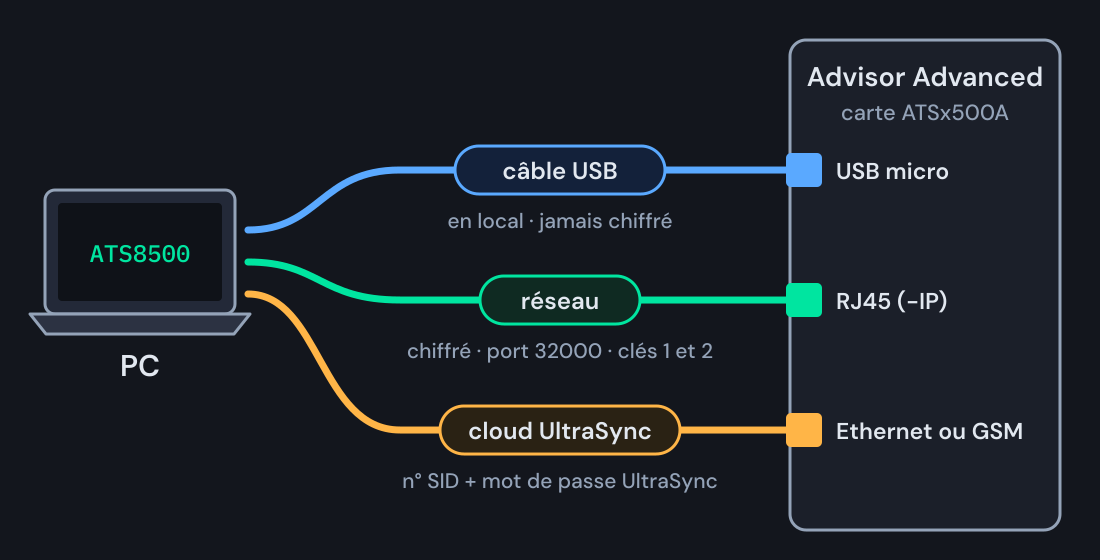
Three paths to the panel: USB locally, the network on -IP models, the UltraSync cloud. Click to enlarge.
Run sudl-setup.exe with administrator rights. The program installs as an upgrade of a previous version or as a new installation.
Open the panel enclosure and plug the USB cable into the board, then into the PC.
On first connection, Windows offers to install the USB driver. Use the one supplied with the software. A new ATS CDC communication port appears on the PC.
Open ATS8500. A window shows the model, name and software version of the panel found on the USB port. Two options:
- add it to the panel list and load its configuration.
- assign it to a file already imported into the list.
Select the panel in the list. Using the Code installateur et clés de cryptage IP (installer code and IP encryption keys) button, enter the installer code (1278 by default) and confirm with OK.
The software adds the panel and loads its configuration.
Double-clicking the panel opens its settings in a new tab. In the list, the panel icon shows its status:
- communicating with the PC.
- connected, idle.
- disconnected.
Read, send or synchronise
The panel data toolbar offers four transfers. Two of them overwrite everything, on one side or the other.
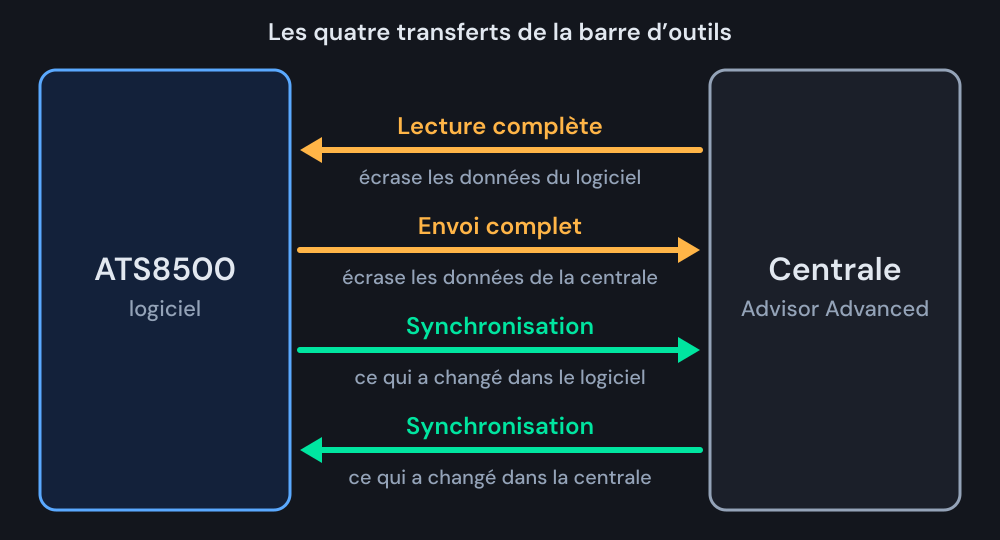
In orange, the two transfers that overwrite everything. In green, the synchronisations, which only send what has changed.
| Transfer | Effect |
|---|---|
| Full read | Reads the whole panel. Overwrites the software data. |
| Full send | Sends all the software data. Overwrites the panel data. |
| Synchronise to panel | Sends only what has been modified in the software. |
| Synchronise to software | Retrieves only what has been modified in the panel. |
On a panel already in service, start with a full read and save it with the Sauvegarde de la configuration de la centrale (save panel configuration) button. The compare button creates an HTML page comparing the panel with a backup or a template.
Connecting over the network
Only -IP models have an RJ45 Ethernet socket on the board. The network connection is always encrypted: ATS8500 must know the panel's two encryption keys.
Settings in the panel
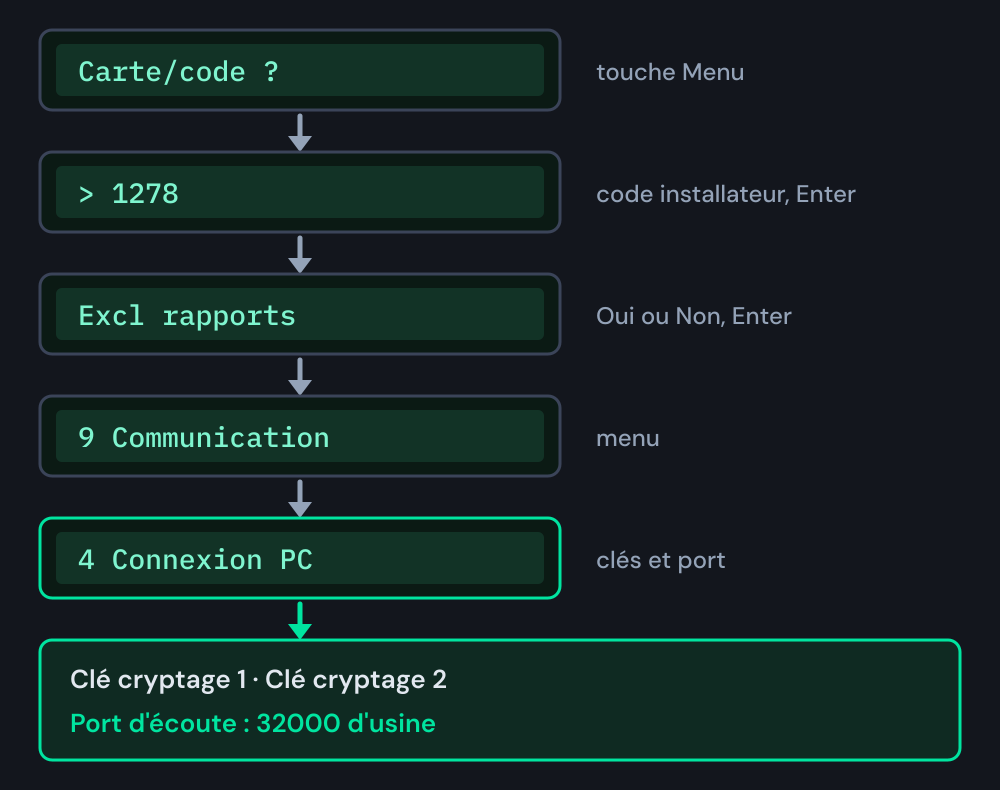
At the keypad: Menu, installer code, then 9 Communication and 4 Connexion PC for the keys and the listening port.
| Menu | Setting |
|---|---|
| 9.3.n.4 Config IP | Dynamique (dynamic) for DHCP, or Statique (static) with IP address, subnet mask and gateway to enter. |
| 9.4.3 and 9.4.4 Clés de cryptage (encryption keys) | Two keys of up to 12 characters. 24 zeros from the factory, to be changed. |
| 9.4.5 Port d'écoute (listening port) | Port on which the panel waits for ATS8500. 32000 by default. |
| 9.4.6 ID centrale (panel ID) | Distinguishes several panels on the same site connected to the software. |
To enter the menu: Menu key, installer code then Enter. The panel then asks whether to exclude transmissions during programming (Excl rapports, exclude reports): Oui stops reporting to the alarm receiving centre and event logging during that time.
Start the connection from ATS8500
Using the Code installateur et clés de cryptage IP button, enter the same keys 1 and 2 as in the panel.
In the panel list toolbar, click the button that creates and starts a remote connection. Fill in the connection parameters in the IP tab, or Modem for a telephone line, then start the connection.
Saved connections then appear in the panel data window, where you can edit or restart them.
Remotely, the panel asks for the installer code by default. It can be replaced by a dedicated remote code, in 3.1.n.2.2 PIN distant (remote PIN).
- Once enabled, it can no longer be disabled or changed from the keypad.
- If the code length is changed afterwards (8.7.4 Longueur PIN, PIN length), ATS8500 can no longer connect. You must delete the panel in the software and create it again.
When the panel calls
The panel can also call the PC. It stores up to 16 PC connections, in 9.4.1 Connexions PC (PC connections):
- Nom dest. (destination name): IP address or domain name of the PC.
- Port de dest. (destination port): port on which the PC waits for the panel.
- Ping hôte (ping host): checks that the PC responds from the panel's network.
On the ATS8500 side, the IP listening port is set in the software options, with incoming connections.
Connecting through the UltraSync cloud
ATS8500 can also reach the panel through Aritech's UltraSync cloud, via the board's Ethernet or via an ATS73X0 GSM/GPRS communicator. In the panel's 9.5 UltraSync menu:
| Menu | Setting |
|---|---|
| 9.5.1 Connectivité (connectivity) | Enabled. |
| 9.5.2 Numéro SID (SID number) | Panel serial number, read-only. This is what you give to ATS8500. |
| 9.5.3.1 Mot de passe (password) | Required to connect remotely through the cloud, with ATS8500 or the mobile app. |
| 9.5.3.3 Conf distante (remote config) | Enabled, to allow remote programming. |
Once the panel is registered in UltraSync, transmissions are configured remotely and the account numbers in the panel menu are disabled.
If the connection fails
- User consent: with Acceptation requise, the customer must enable Maintenance. Access only lasts for the time set in 8.1.3.6 Service.
- Software version: it must support the panel firmware. Otherwise, reading and sending fail.
- Encryption keys: over the network, keys 1 and 2 must be the same on both sides.
- Code length changed: with a remote code active, delete the panel in ATS8500 and create it again.
- USB port: the driver supplied with the software must be installed and the ATS CDC port visible in Windows.
The installer code is lost
The manual provides a recovery procedure, using the T1 jumper on the board:
- Disconnect the panel's mains and battery.
- Fit the T1 jumper.
- Power up again.
- Within three minutes, enter the installer menu with the factory code
1278. No user consent is requested.
The procedure is logged. It is refused if the 8.2.3 Verrouil. ingénieur (engineer lock) option is enabled. Afterwards, the limits of keypad 1 are reset: it sees and controls all zones.
Aritech documentation: Advisor Advanced ATSx500A(-IP) installation and programming manual (chapters 4 to 6), ATS8500 Downloader overview and ATS8500 1.21 release notes.
Frequently asked questions
What is the factory installer code for an Advisor Advanced?
1278, and 1122 for the supervisor.
With longer codes, zeros are added at the end: 127800 with 6 digits.
Which port does ATS8500 use?
The panel waits for the software on port 32000 by default, adjustable in 9.4.5 Port d'écoute.
What are the default encryption keys?
24 zeros, i.e. 12 for key 1 and 12 for key 2. Aritech strongly recommends changing them.
Over the network, they must be the same in the panel and in ATS8500. USB does not use encryption.
Which Windows version should ATS8500 be installed on?
Version 1.21 requires 64-bit Windows 10 or 11, with SQL Server 2012, 2014, 2016 or 2022.
ATS8500 won't connect: what should I check?
- User consent, if Acceptation requise is active.
- The software version against the panel firmware.
- Over the network: the encryption keys and the port.
- Over USB: the driver and the ATS CDC port.
How do I recover installer access without the code?
Panel powered down, T1 jumper fitted, power restored, then three minutes to log in with the factory code.
Not possible if Verrouil. ingénieur is enabled.