
Aritech ATS Advanced: updating the firmware on an ATSx500A
26 November 2026 · Theo
FRLire cette fiche en françaisAn Aritech Advisor Advanced ATSx500A panel in MR3 or MR4 can be updated in three ways: with ATS8500, with a USB stick plugged into the board, or with the AAFlash utility. The first two keep the programming. AAFlash erases it.
The firmware file is a .dfu file. To connect to the panel with the software, see the guide Aritech ATS8500: connecting to an Advisor Advanced control panel.
- With ATS8500: Mise à jour Firmware (firmware update) button, .dfu file, about ten minutes. Over USB, IP or UltraSync. The programming is kept.
- With a USB stick: FAT-formatted stick, .dfu file in the root, menu 1.3.4.1 MAJ logicielle (software update), then set Gard conf sys ? (keep system configuration?) to Oui (yes).
- With AAFlash: over USB, with jumper T2 fitted. The programming is erased: the panel must be reinstalled and then reprogrammed.
- No going back: an older version cannot be installed.
Three methods: which one to choose
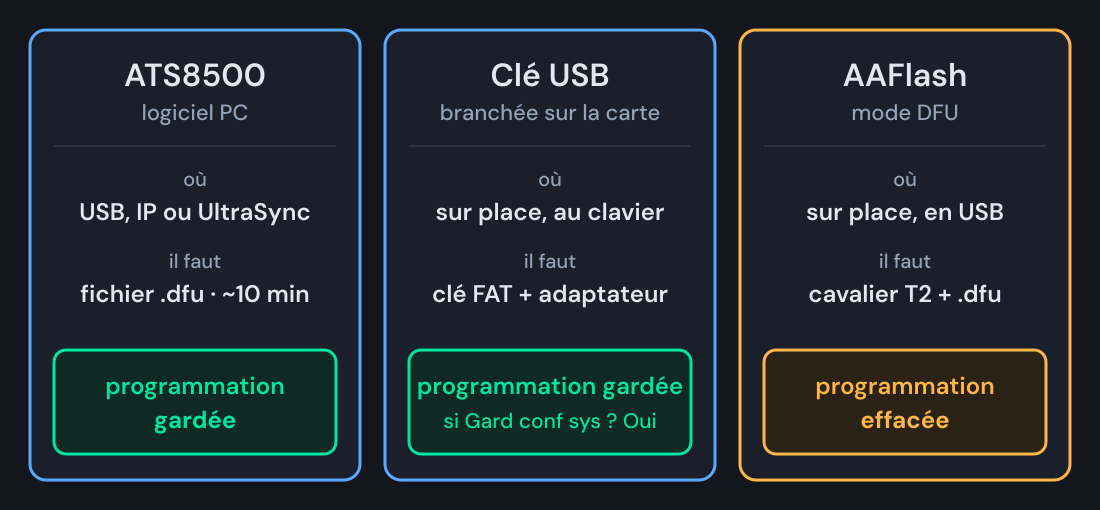
ATS8500 and the USB stick keep the programming. AAFlash erases it. Click to enlarge.
| Method | What you need to know |
|---|---|
| ATS8500 | Locally over USB or remotely over IP, directly or through UltraSync. Only the firmware changes; the programming stays. |
| USB stick | On site, without a PC. The programming stays if you answer Oui to Gard conf sys ?. |
| AAFlash | On site, over USB, panel in DFU mode. Erases all the programming. |
Before you start
| You need | Details |
|---|---|
| The firmware file | A .dfu file, available from your Aritech distributor, as is AAFlash. |
| The right software | The 2017 note requires at least ATS8500 MR 1.3.0 and AAFlash 2.4.0. ATS8500 1.21 supports ATSx500A panels up to firmware MR 4.13. |
| Being on site | The manual places software changes at access level 4 (manufacturer), to be done on site. The 2017 note nevertheless allows remote updates with ATS8500. |
| A newer version | Downgrading to an older version is not allowed. |
To plug a cable or a stick into the board, the menu 1.4 Isole coffret (isolate enclosure) avoids a tamper alarm:
- Set 1.4.1 Tempo AP ATS (ATS tamper timer) long enough to open the enclosure and plug in.
- Isolate the cover with 1.4.2 AP coffret (enclosure tamper).
- Open and plug in. Once the PC is connected, the enclosure tamper stays isolated.
With ATS8500
Over USB, IP or UltraSync, as for programming it.
Click the Mise à jour Firmware button, at the far right of the toolbar, then select the .dfu file.
ATS8500 reads the panel, sends it the firmware, then the panel restarts with the new version and its programming. The whole process takes about 10 minutes.
With a USB stick
You need a FAT-formatted USB stick and a USB to micro USB adapter to plug it into the board.
Format the stick in FAT and copy the .dfu file to the root.
A battery must be connected to the panel.
Enter programming, then 1 Maintenance → 1.3 Logic gestion (software management) → 1.3.4 MàJ USB (USB update) → 1.3.4.1 MAJ logicielle. The keypad lists the files on the stick.
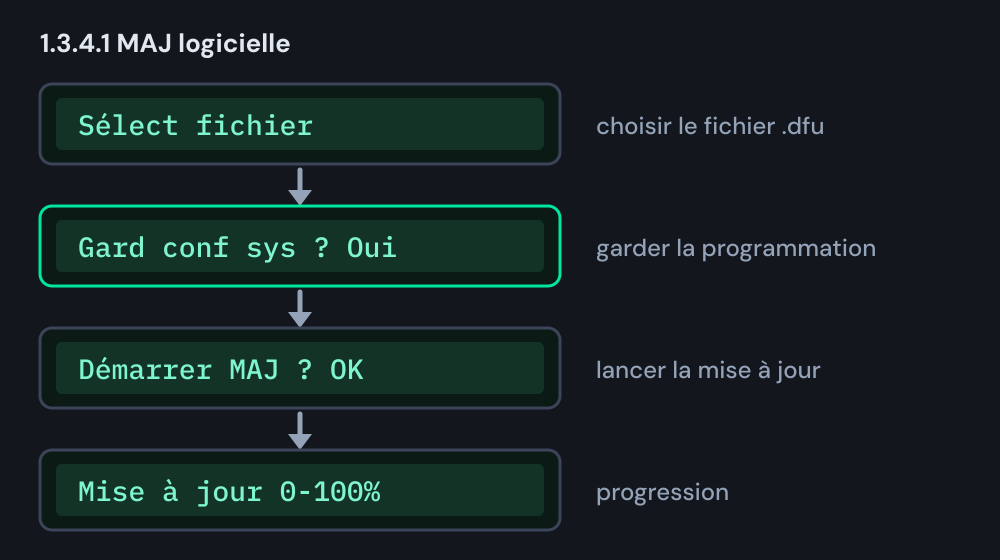
Four screens: the file, Oui to keep the configuration, OK to start, then the progress.
Once the update is complete, the panel exits the programming menu.
The same menu offers 1.3.4.2 Chargement FW (firmware load), which saves the panel's firmware or configuration to a .dfu file on the stick.
With AAFlash, in DFU mode
AAFlash replaces the firmware and completely erases the programming. After the update, the panel must be reinstalled from the keypad, then reprogrammed from the keypad or by sending its programming back from ATS8500. The manual asks you to archive the current firmware and its settings first (see below).
AAFlash installs through its setup.exe. It needs Microsoft .NET: version 3.5 according to the manual, with the .NET 4.6.2 package supplied with AAFlash 2.4.
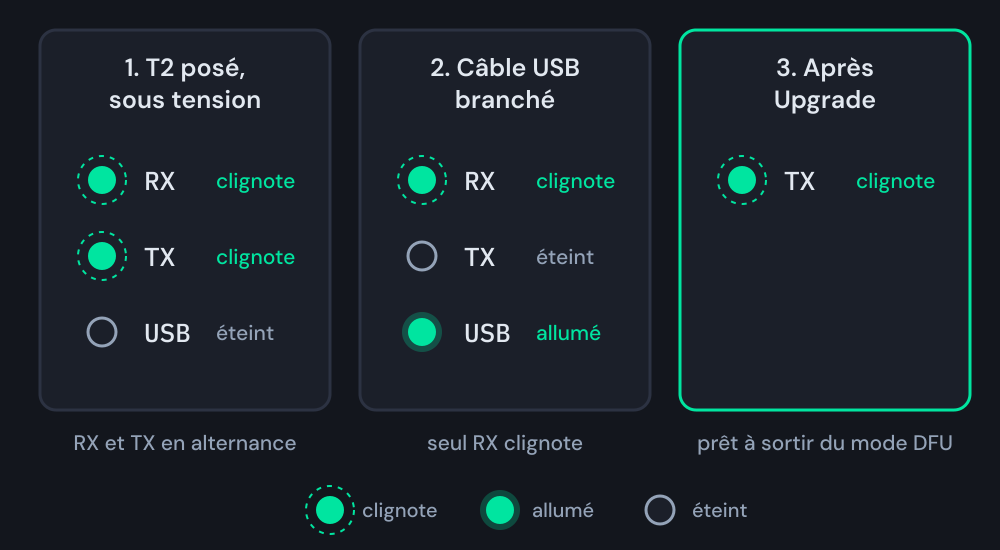
The lights show where you are: RX and TX alternating, then USB on and RX alone, then TX at the end.
Disconnect the mains and the battery from the panel.
Bridge the T2 jumper on the main board, then power up again. The RX and TX lights flash slowly, alternately.
If they do not flash, power down and power up again.
The USB light comes on and only the yellow RX light keeps flashing.
On first connection, Windows asks for the Advisor Advanced USB DFU driver: take it from the AAFlash driver folder. A STM Device in DFU Mode controller then appears in Windows.
Double-clicking the .dfu file opens AAFlash. Click Upgrade, wait for the steps to finish and confirm the final message.
AAFlash erases the old firmware, writes the new one, then verifies it. The TX light flashes when the panel is ready to leave update mode.
Disconnect the mains and the battery, remove the T2 jumper, then power up again.
Repeat the initial installation from the keypad, then reprogram the panel, from the keypad or by sending its programming back with ATS8500.
With the panel connected in DFU mode, AAFlash can first back up the current firmware and its settings: choose a new .dfu file with the ... button, then click Upload. If the update fails, this file lets you return to the previous state.
If the bootloader is too old
A panel with an old bootloader cannot take the latest firmware. You must first update the bootloader, with AAFlash 2.3.0 or later:
- Disconnect the mains and the battery, fit the T2 jumper, connect the USB cable, then power up again. The panel is in DFU mode and the RX light flashes.
- In AAFlash, open the bootloader .dfu file with ..., then click Upgrade Bootloader.
- Accept or decline the firmware and database backup offered by the program.
- Remove the T2 jumper and disconnect the USB cable.
- Leave the mains and the battery connected: the new bootloader is being written. The heartbeat light flashes at the end.
- Refit the T2 jumper and reconnect the USB cable. The panel restarts in DFU mode with the new bootloader.
The bootloader is a vital part of the panel. Follow the order of the steps and do not cut the power during writing: otherwise the panel is damaged.
Aritech documentation: note 0051A, firmware update for ATS Advanced ATSx500A MR3/4 and Advisor Advanced ATSx500A(-IP) installation and programming manual (chapter 6 and menu 1.3.4).
Frequently asked questions
Does the update erase the programming?
- With ATS8500: no.
- With a USB stick: no, if you answer Oui to Gard conf sys ?.
- With AAFlash: yes, everything is erased.
What is the T2 jumper for?
It starts the panel in DFU mode, the mode used for firmware updates with AAFlash. The T1 jumper, on the other hand, is used to recover the installer code.
Can an ATS Advanced be updated remotely?
Yes, with ATS8500 over IP, directly or through UltraSync. The USB stick and AAFlash require you to be on site.
How long does the update take with ATS8500?
About 10 minutes: reading the panel, sending the firmware, then restarting.
Can you go back to an older version?
No, downgrading to an older version is not allowed. If an AAFlash update fails, you restore the firmware archived before the operation.
The RX and TX lights do not flash: what should I do?
Power down and power up again, with the T2 jumper in place. If they still do not flash alternately, the PC does not have the right driver, Advisor Advanced USB DFU: it is in the AAFlash driver folder.